Google Review Link And QR Code Generator
Turn your Google review link into a clean QR code and a printable counter card in about two minutes. Customers scan, the review box opens, and they leave a review on the spot.
- Free, no sign-up
- Runs in your browser
- Remembers your entries on this device
- Updated November 19, 2026
Welcome back. Your last entries are restored, so you can pick up where you left off.
- 2ways to get your link: Google's share button or your Place ID
- SVG + PNGQR code downloads for print and screens
- 0incentives allowed for reviews under Google policy
Make Your Review Link, QR Code And Card
Paste the link from your Google Business Profile, or build one from your Place ID. Everything below updates as you type.
Want more message ideas? The Review Request Message Writer drafts texts and emails by industry and tone.
Two Ways To Get Your Review Link
Google gives every verified Business Profile a review link. The Place ID route works when you cannot reach the profile dashboard.
From Your Business Profile
Open your profile, choose Read Reviews, then Get more reviews. Copy the link. Google's own QR code appears there too, on a computer browser only.
From Your Place ID
Search your business in Google's Place ID Finder, copy the code that starts with ChIJ, and paste it above. The tool builds a link that opens the review box.
Test Before You Print
Ask someone else to scan the code on their phone. The review box opens after they sign in to Google. Owners cannot review their own business, so your own test looks different.
Where To Put Your QR Code
Google suggests placing the review link where a visit ends: receipts, thank-you emails, the close of a chat and a printed QR code in the store. Put it where the customer already holds a phone.
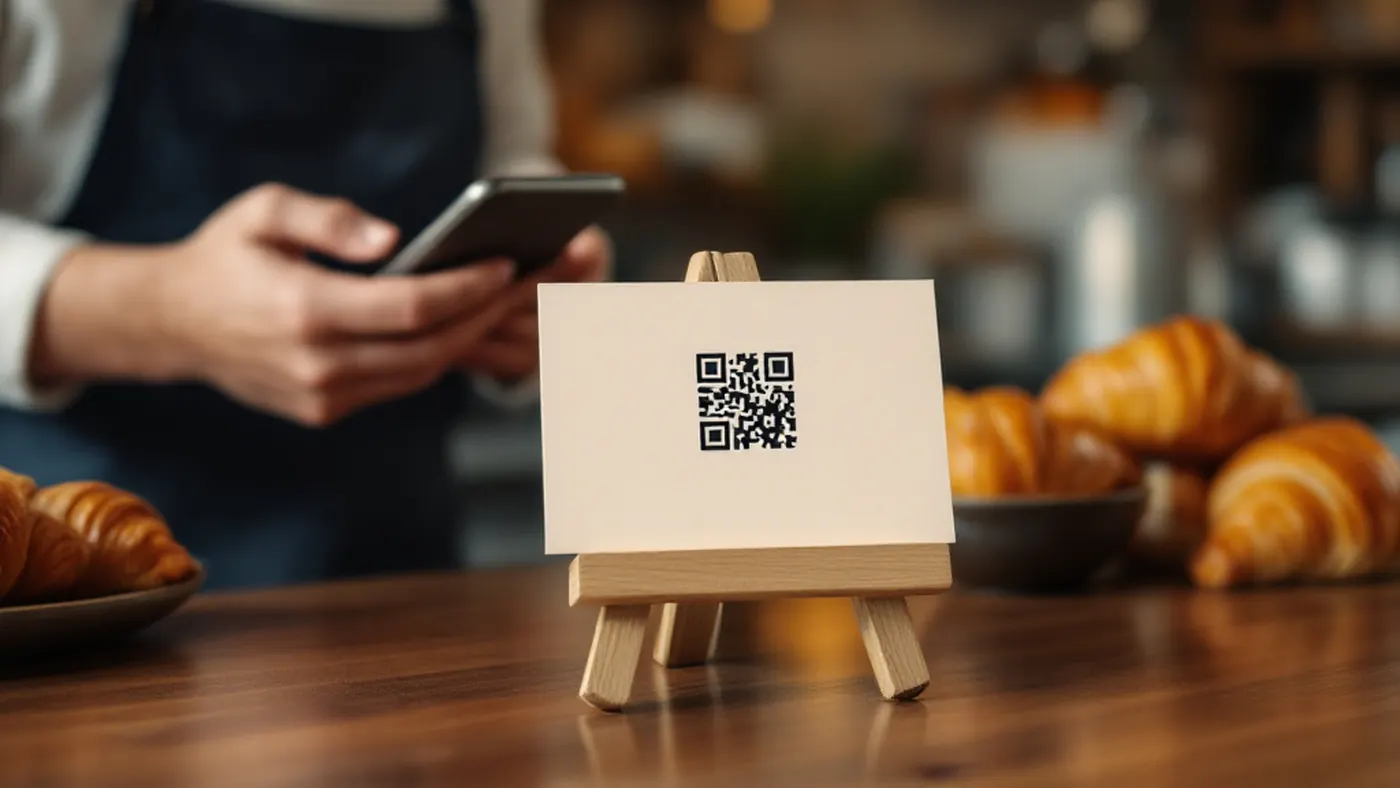
- Prints on the counter card at the register or reception desk
- Sits on invoices, receipts and job completion sheets
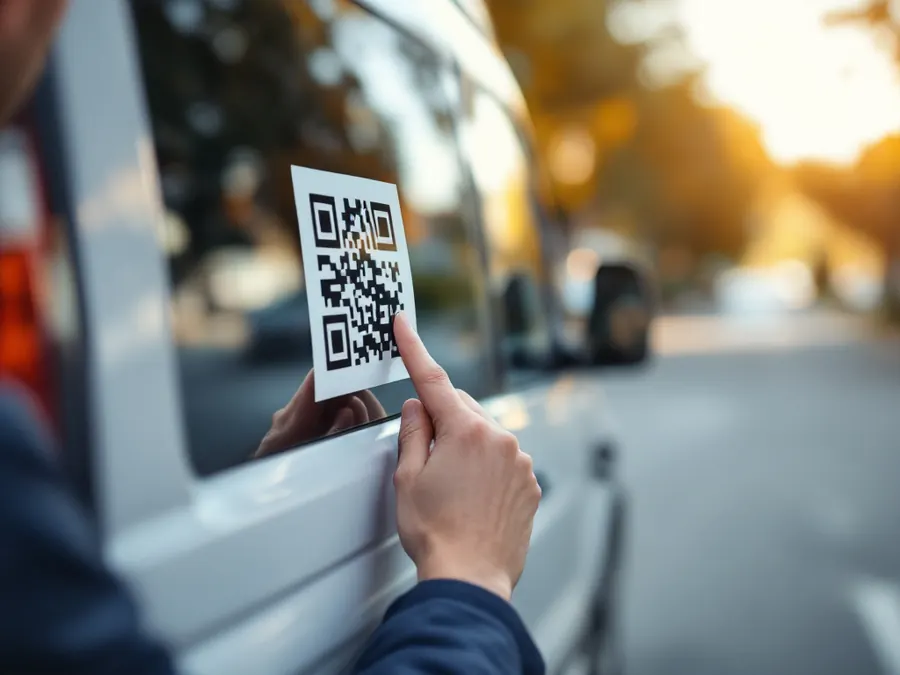
- Rides on the back window of service vans and trucks
- Closes every thank-you email and follow-up text
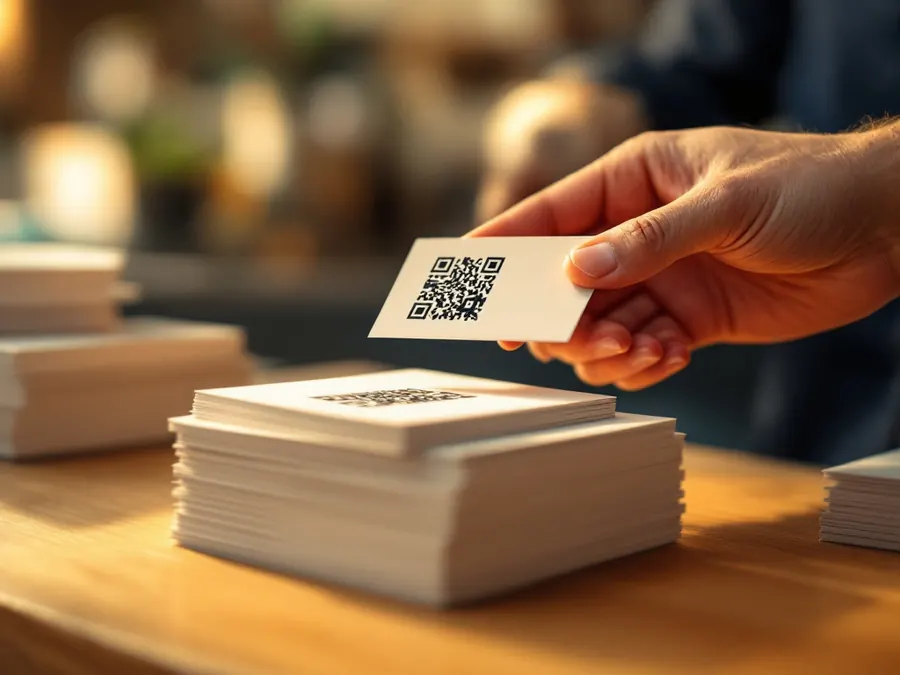
- Appears on business cards that staff hand out after a job
Google's Rules For Asking For Reviews
Google allows any business to ask customers for honest reviews. Its Maps content policy draws clear lines around how you ask.
Google also bars merchants from asking staff to collect a set number of reviews. A steady habit of asking everyone beats a one-week push.
Print A QR Code That Scans Every Time
A QR code fails when it prints too small, too faint or too close to other artwork. The downloads above keep a white border, called the quiet zone, around the code.
- Use SVG for printSend the SVG file to your printer. It stays sharp at any size.
- Size it for the distanceA card held in the hand needs a small code. A van window or a sign across the room needs a much larger one. Scan it from where your customers stand.
- Keep the contrastDark code on a white background. Skip colored or patterned backgrounds behind it.
- Scan a proofScan the printed proof with two different phones before the full run.
After The Review Arrives: Reply
Google's help pages ask owners to keep replies short, conversational and free of promotions. Replying shows future customers that someone reads every review.
Make It A Habit
Come back each quarter, and any time you add a truck, a counter or a staff member. Test the link, reprint worn cards and put a fresh QR code wherever customers finish a visit.
Bookmark this page with Ctrl + D (⌘ + D on a Mac), or save it to My Tools. Your entries wait for you on this device.
Questions People Ask
How do I find my Google review link?
What is a Google Place ID?
Can I offer a discount for a Google review?
Why does my link open my listing instead of the review box?
Can I review my own business to test the link?
More Free Tools
 Templates
Review Request Message Writer
Ready-to-send texts and emails that ask for a Google review, by industry and tone.
 Planner
Google Business Profile Post Planner
A year of post ideas by month, a post drafter with a character counter, and weekly reminders.
 Calendar
Holiday Hours Calendar
Every US and Canadian holiday that needs special hours on Google, with a reminder a week before.
Related Services And Guides
How This Tool Works
The tool checks the link you paste and accepts Google review links (g.page) and Place ID review links. A Google Maps share link gets a warning, because it opens the listing rather than the review box. From a Place ID, the tool builds https://search.google.com/local/writereview?placeid= followed by your ID. Google does not document this address format, but it opens the review box today; test it before printing.
QR codes use error-correction level M and a quiet zone of white space around the code, so they scan from print and screens. The QR library is qrcode-generator by Kazuhiko Arase (MIT license), running in your browser.
Sources
- Google Business Profile Help: Create a Google link or QR code to request reviews
- Google Business Profile Help: Tips to get more reviews
- Google Business Profile Help: Reply to reviews
- Google Maps Help: Maps user generated content policy
- Google Maps Platform: Place IDs and the Place ID Finder
Everything you type stays in your browser. Nothing is sent to Sherman Hu SEO or anyone else. Saved entries live only on this device until you clear them.
General information, checked against the sources above on November 19, 2026. Google and other platforms change their rules; their current help pages win.
Want Sherman Hu to do this for your business?
Schedule My Free SEO Call